Step 1: Set Up the Organisation and Decide Who Holds Which Role
FlightHub 2 separates permissions into organisation-level and project-level roles, and the two operate independently of each other. At organisation level there's a Super Administrator who owns the organisation's full lifecycle, an Organisation Administrator who manages members, devices and projects day to day, a Device Maintainer who manages devices specifically, a Member who can view projects and add devices, and a Temporary Member with limited access inside a joined project. At project level there's just two: a Project Administrator with full control of that project, and a Member with basic operating permissions inside it.
Deciding this structure before adding devices matters more on a larger fleet than a one-aircraft operation, since a Device Maintainer role lets a technical lead manage hardware without also holding the broader organisation-admin permissions a manager might need instead. A small operation can reasonably run with one Organisation Administrator and nothing more complex than that.
Step 2: Bind an Aircraft or Dock to the Organisation
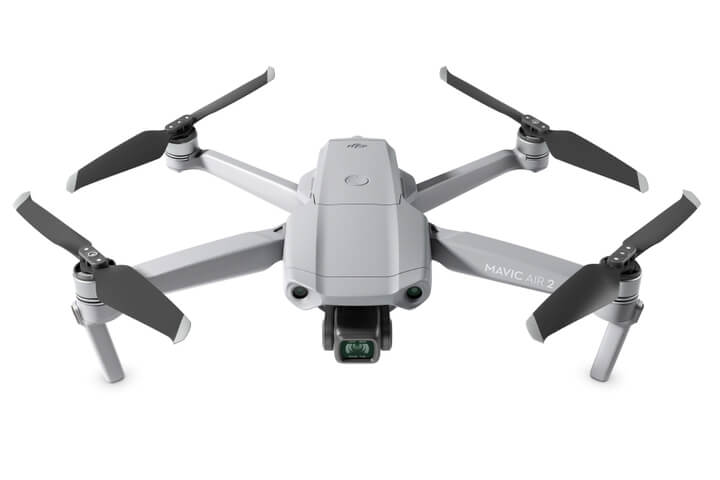
A manually-flown aircraft binds to FlightHub 2 through DJI Pilot 2: signing in with the DJI account tied to the organisation, selecting FlightHub 2 as the cloud service, choosing the organisation and project, and confirming device binding from the project information screen. A dock-based aircraft, the setup most FlightHub 2 operations actually run, binds as part of the dock's own installation and registration process instead, covered in the dock's separate setup manual rather than inside FlightHub 2 itself. Our DJI Matrice 400 With Zenmuse L3 guide covers one current aircraft and payload combination this binding step applies to.
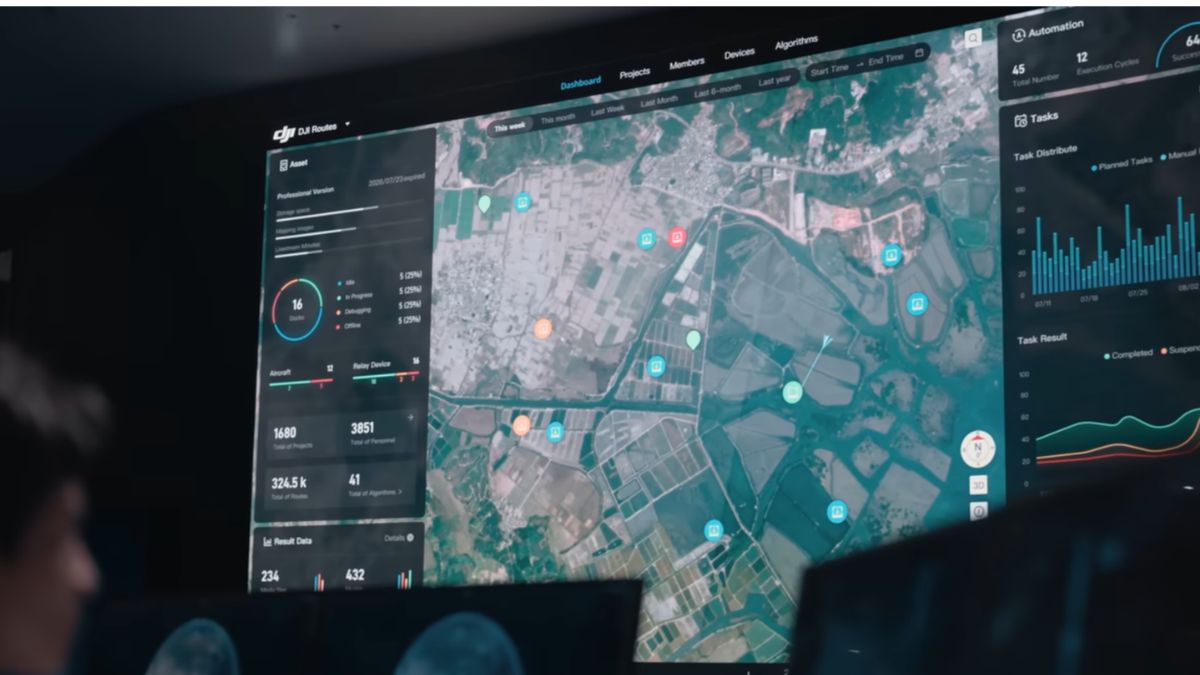
Once bound, every registered aircraft and dock appears on the organisation's Devices page, where an Organisation Administrator or Device Maintainer can check firmware status and connectivity before relying on it for a live mission. A device that won't bind is almost always a sign-in or organisation-selection mismatch rather than a hardware fault, worth checking before assuming the aircraft itself is at fault.
Step 3: Create a Project and Add Members
A project sits inside the organisation as the actual working space a mission gets flown in, created with a name, an optional description, and a default point of interest the platform centres the map on. Adding members and devices to the project at creation, rather than afterward, means everyone who needs to see or fly a mission already has access when the first route gets built. A join code can be shared with a project's members as a faster way to add them than inviting each one individually.
Step 4: Build and Assign a Flight Route
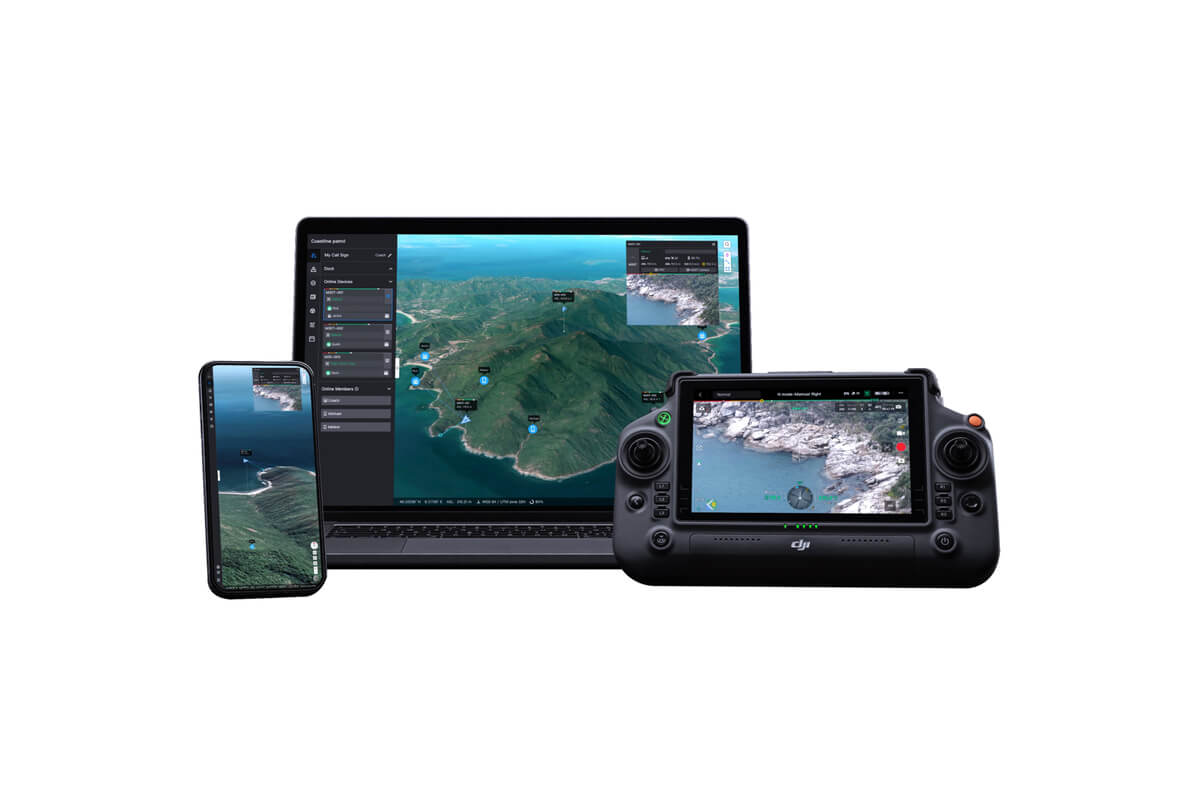
FlightHub 2's Flight Route Library is where a mission actually gets planned: patrol, inspection, mapping and corridor route types cover most planned missions, built and edited directly on the map inside the platform. A one-click FlyTo task is the fastest route to build for an unplanned or emergency response situation specifically, DJI's own description states that the platform "automatically plans the safest and fastest route" to a selected point rather than needing a route drawn manually. Once built, a route gets assigned to a specific bound aircraft or dock before it can actually fly.
Which route types and aircraft a given FlightHub 2 instance offers depends on the fleet bound to it and the firmware version running, so a route type unavailable on a first login is worth checking against the aircraft and dock actually registered rather than assumed to be a platform limitation. Our DJI FlightHub 2 vs DJI Terra guide covers mapping-specific route planning in more detail, where FlightHub 2's flight side feeds into a DJI Terra processing job afterward.
Step 5: Run the Mission, Manually or on a Schedule
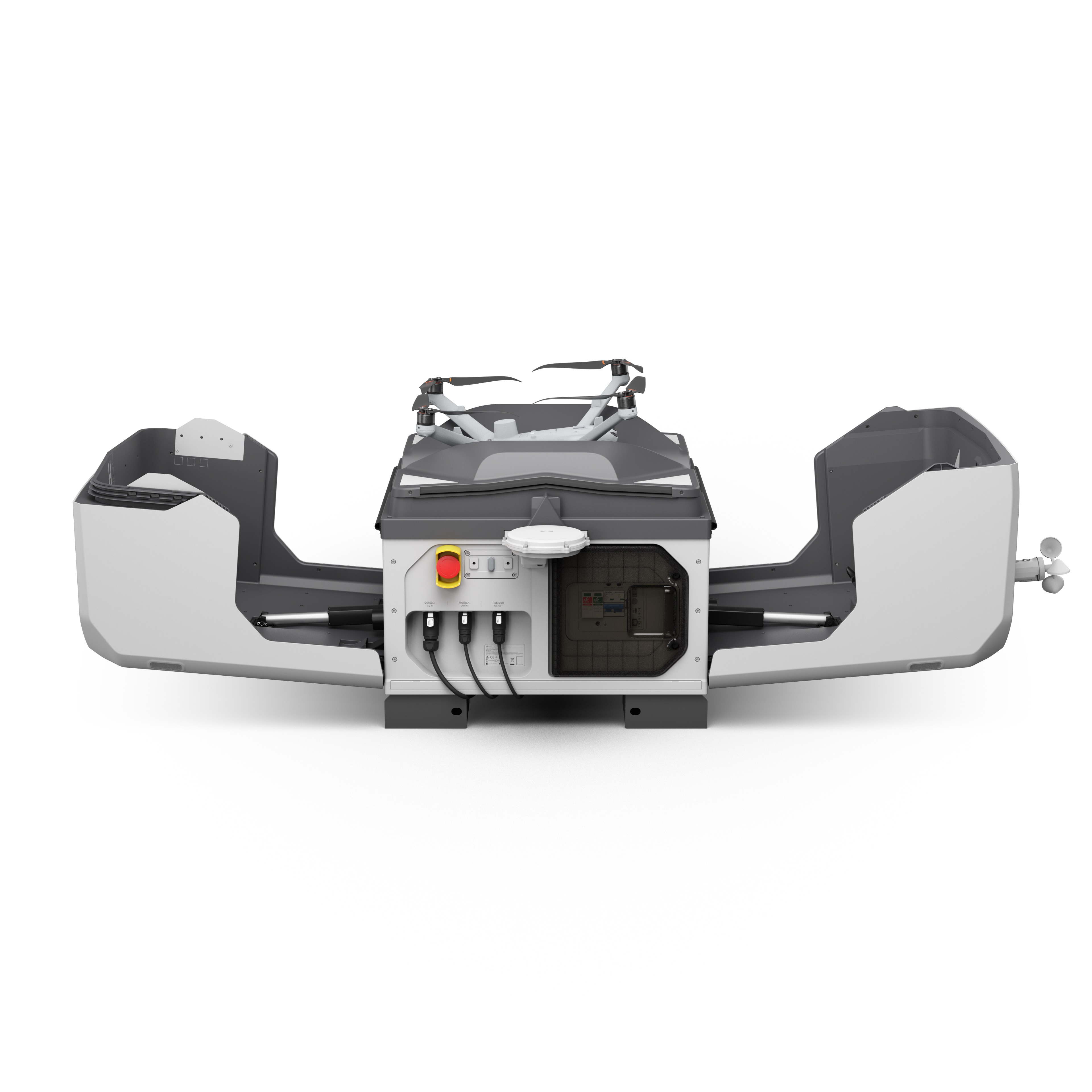
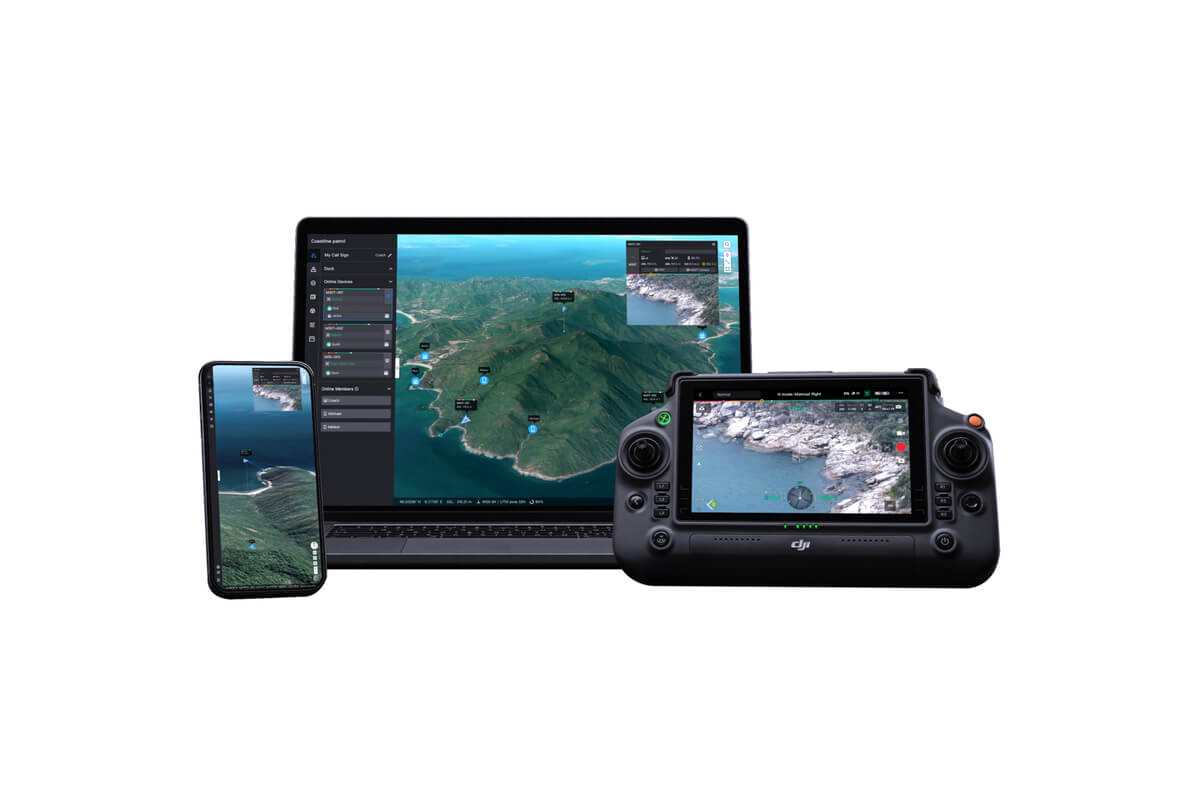
A manually-flown mission runs through the Virtual Cockpit, FlightHub 2's live control interface, giving remote control of the aircraft, its camera feed and its telemetry from the dashboard rather than standing beside the pilot. A dock-based mission instead runs on an automated schedule: the dock launches the assigned route at its set time, flies it, lands, and returns the aircraft to charge without anyone present at the site. DJI's own description of a fully automated setup covers scheduling flights that "execute missions, upload data to the cloud, and initiate modelling" without manual intervention at any stage.
A first mission is worth running as a short manual test through the Virtual Cockpit even on a dock-based setup, confirming the live feed, telemetry and control response are all working before trusting an unattended automated schedule to run the same route unsupervised.
Step 6: Review What Came Back
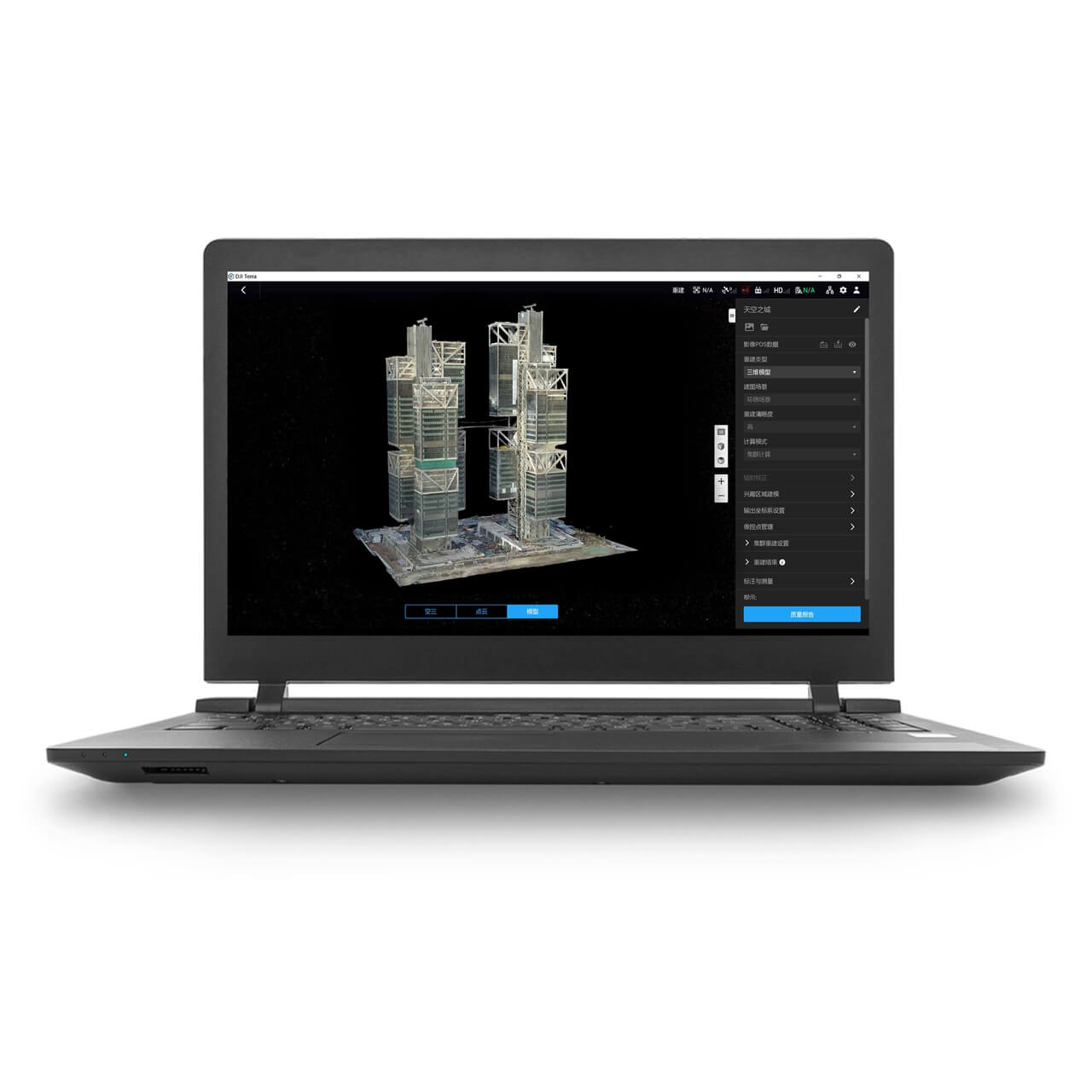
A completed mission's livestream and recorded footage sit inside the project afterward, searchable with FlightHub 2's AI-driven multimodal search across whatever the fleet captured rather than scrubbing through footage manually. Mapping or inspection data captured for later processing, rather than live monitoring, carries forward into DJI Terra for the actual orthomosaic, point cloud or 3D model, covered in our DJI Terra Beginners Guide. Reviewing a first mission's captured data before scheduling a second one confirms the whole pipeline, binding, route, and capture, actually worked end to end.
Common First-Setup Mistakes
Binding a device while signed into the wrong organisation or project is the most frequent early mistake, and it looks like a failed binding rather than the account mismatch it actually is. Assigning a route to the wrong aircraft, or to one whose firmware doesn't yet support that route type, is a close second, worth checking against the Devices page before a scheduled mission fails to launch. Skipping a manual test flight before trusting a dock's first automated schedule is the third, and it's the one most likely to go unnoticed until a mission runs unattended and something's set up wrong.
What This Means in the Field
FlightHub 2's learning curve sits almost entirely in the setup, organisation roles, device binding and route assignment, rather than in operating it day to day once a fleet is actually live. Getting the organisation structure right before adding devices, and running a manual test mission before trusting an automated dock schedule, turns a first week of confusion into a working fleet operation considerably faster.
 Free Gifts Included
DJI Dock 3 With DJI Matrice 4TD
Intelligent Recognition With AI · IP55 Waterproof Protection
Common Questions
No. A manually-flown aircraft binds through DJI Pilot 2 and controls through the Virtual Cockpit without any dock involved; a dock simply adds automated, unattended scheduling on top.
Almost always a sign-in or organisation/project-selection mismatch in DJI Pilot 2 rather than a hardware fault. Confirming the correct DJI account and organisation are selected before binding resolves most cases.
Organisation-level roles, five in total, control the organisation's members, devices and projects broadly. Project-level roles, just two, control permissions inside a single project, and the two sets operate independently of each other.
Manual, through the Virtual Cockpit, even on a dock-based setup. Confirming the live feed, telemetry and control response work correctly before trusting an unattended automated schedule catches a setup mistake before it runs unsupervised.
FlightHub 2 captures and stores the mission data; DJI Terra is the separate desktop software that processes it into a finished orthomosaic, point cloud or 3D model. Our DJI Terra Beginners Guide covers that next step.