The Module Comes First
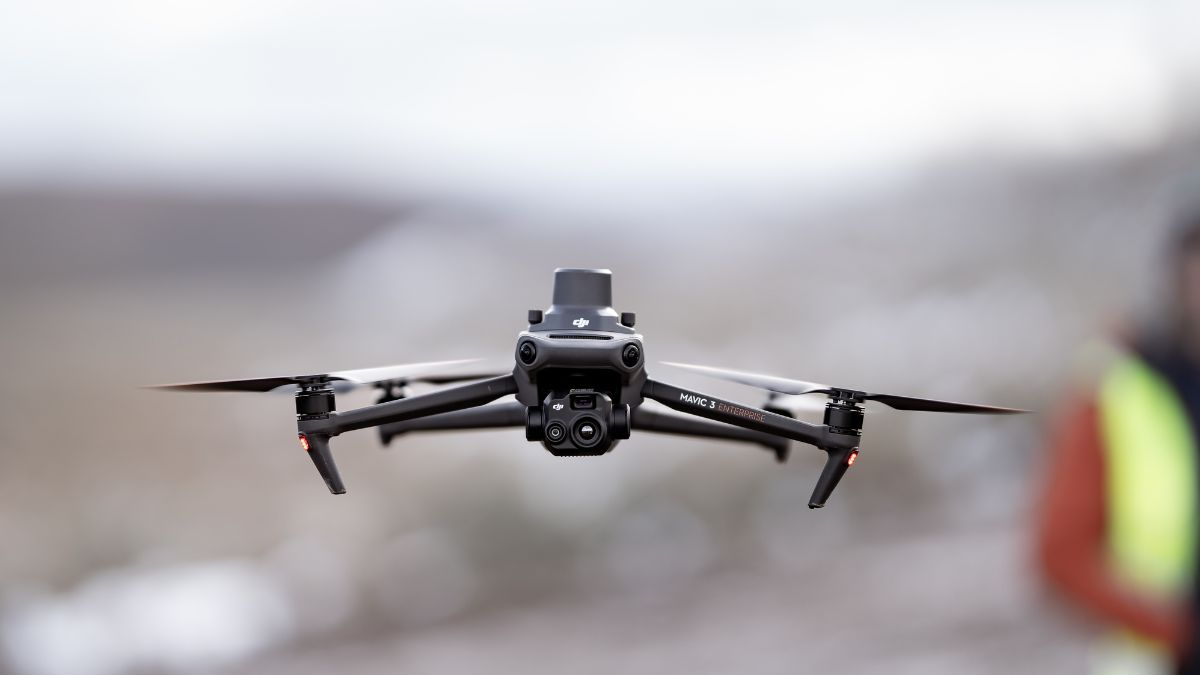
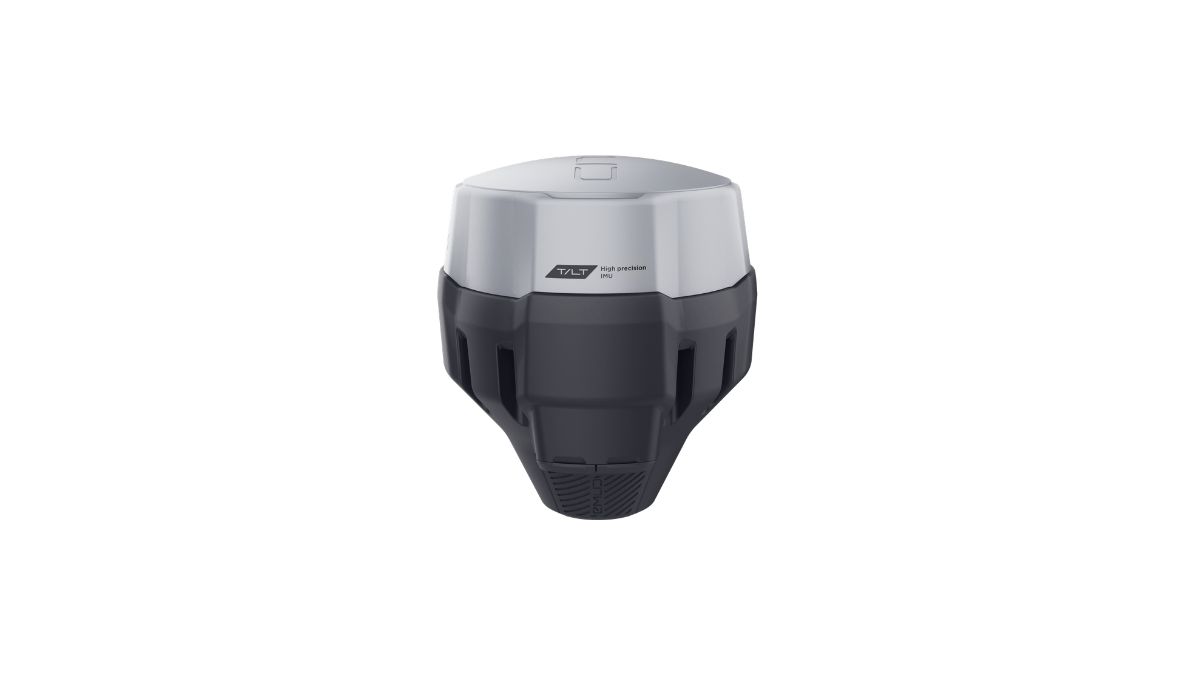
Custom Network RTK, and every other RTK setting in Pilot 2, is invisible on a Mavic 3 Enterprise without the RTK module fitted. If the RTK icon isn't appearing in Camera View's settings menu, that's the first thing to check, not a connection problem. Our Mavic 3 Enterprise RTK setup guide covers fitting the module itself.
Mavic 3 Enterprise Compatibility and Accuracy
Custom Network RTK is confirmed for the Mavic 3 Enterprise RTK on its RC Pro Enterprise controller, once the module is fitted. Connected and holding FIX, accuracy is 1cm + 1ppm horizontal and 1.5cm + 1ppm vertical, the same figures quoted on the module's own spec sheet.
Setting Up the Connection
The steps are identical to any Custom Network RTK aircraft once the module is present: RTK settings under Settings or Safety depending on firmware, RTK Positioning toggled on, RTK Service Type set to Custom Network RTK, then the host, port, username, password and mount point from your NTRIP provider. Our DJI NTRIP connection guide covers each field and the troubleshooting for a stuck connection in full; nothing about that process changes once the module's fitted.



RTK Network Subscription - 1Y Unlimited
More than 7,500 base stations · Accuracy of 1.5cm with EU Certification
 Free Gifts Included
Common Questions
The RTK module isn't fitted. The setting is invisible on an unmodified airframe and appears automatically once the module's connected.
No. Custom Network RTK works identically across confirmed aircraft once RTK is present on the airframe; only the credentials you enter change, not the process.
No. It's delivered through Emlid Flow and licensed to Emlid Reach receivers, not accessible from Pilot 2 directly.
1cm + 1ppm horizontal, 1.5cm + 1ppm vertical once the status reaches FIX, matching the RTK module's own spec sheet.